- See also: Controls
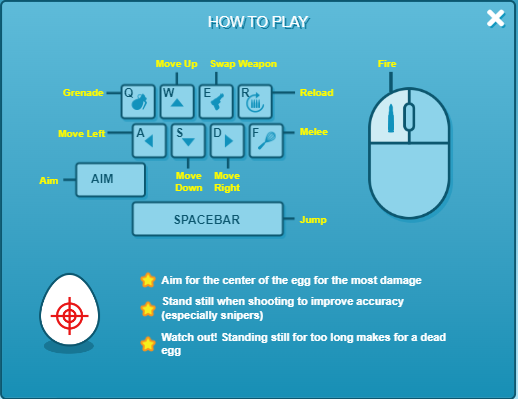

The settings are the menu in which players can personalize their gameplay and change certain features to their preferences. The settings can be accessed and changed in the lobby, or in the spawn menu during a match. There are three tabs of settings.
Keybinds
The first tab revolves around keybinds, which allow the player to change the controls by setting certain actions to certain keys. For example, the player may choose to bind the "grenade throw" key to G instead of Q. Also, in this submenu players can customize their sensitivity and invert the mouse.
While the first tab affects PC controls, the second tab allows players to set keybinds for XBOX or PS4 controllers.
Audio
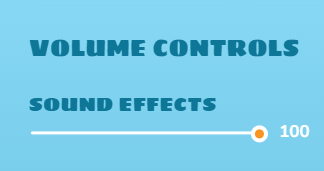
In the top of the third tab of the settings, you will find AUDIO CONTROL. There will will have the option to change the sound effects whilst in-game and the menu. It affects the sound of weapons, button clicking and other audio that may be found within Shell Shockers.
Gameplay
The bottom of the third tab is the more options section. Players can select the "safe usernames" option, which changes all player names in a match to default, randomly generated usernames such as "ShellPro56" or “LordCluck83”. You also have the option to select or deselect the high resolution, shadow renders, auto detail, and to turn on or off sound. They can also adjust the mouse speed, which is how fast the mouse can move. A 0 mouse speed means that the mouse will not move. Around 60 is the best for new players. With Version 0.47.2, a "Show Hit Markers" option was also presented.

Languages
Under the third tab, you can also find the Language settings. These settings allow you to change the language of the game for chat, audio, and other visual affects that rely on language.
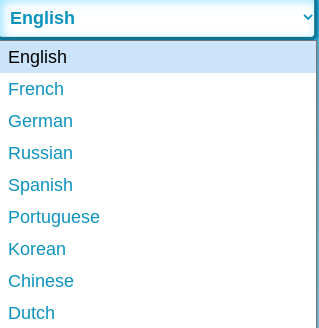

Current Language Menu
How to report bugs
Bugs are a common glitch in shell shockers, there are often found quickly and removed in the next update. These bugs can be "Falling out of the map" or "A visual Weapon glitch". If you find a bug in shell shockers here is how you can report it.
- First take a proper full screenshot or screen recording of this bug(make sure to include every bit of information leading to this bug happening, the more information, the better).
- After go to the Blue Wizard Digital official Discord server https://discord.gg/bluewizard
- Once your there and you finished all the verification look for the "bug-reports" channel
- Now upload your video or image and state a description on. State what the bug is? How is it triggered? Or where was it triggered?
Current Settings Tabs


Legacy Settings Tabs
